

Pod provides a way to run serverless containers on the cloud. It enables you to quickly launch a container as an HTTPS server that you can access from a web browser.
Pods run in isolated containers, allowing you to run untrusted code safely from your host system.
This can be used for a variety of use cases, such as:
- Hosting GUIs, like Jupyter Notebooks, Streamlit or Reflex apps, and ComfyUI
- Testing code in an isolated environment as part of a CI/CD pipeline
- Securely executing code generated by LLMs
Launching Cloud Containers
Containers can be launched programmatically through the Python SDK, or with the Beam CLI. For example, the following code is used to launch a cloud-hosted Jupyter Notebook:Accessing Containers via HTTP
You can then enter this URL in the browser to interact with your hosted container instance: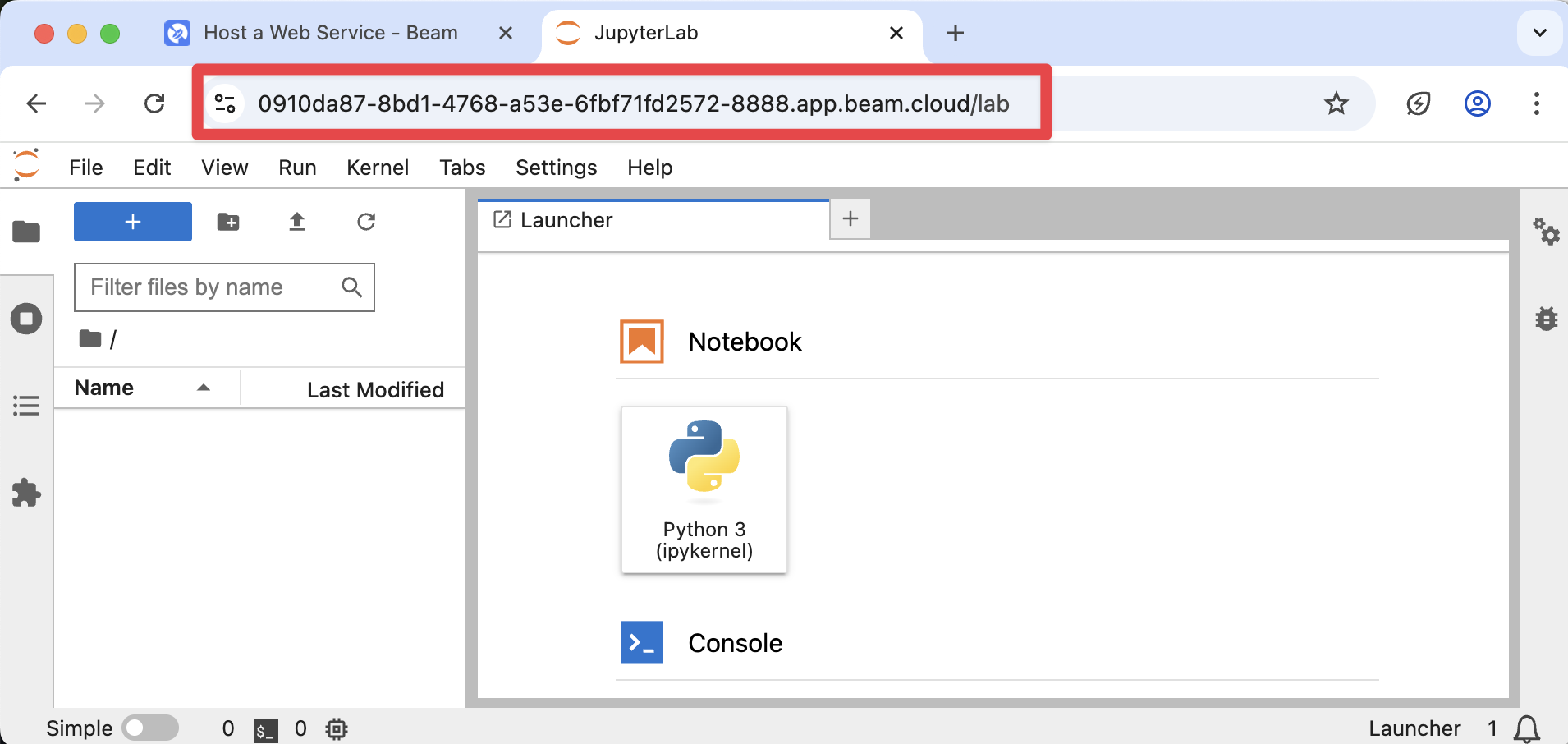
Securely Executing Untrusted Code
Beam’s containers are launched in isolated environments from your host system, making it safe to execute untrusted or LLM-generated code.Parameters
Pods can be heavily customized to fit your needs.Using Custom Images
You can customize the container image using theImage object. This can be customized with Python packages, shell commands, Conda packages, and much more.
Specifying Entry Points
An entry point is the command or script that will run when the container starts. You can interact with Pods using the CLI or the Python SDK.Passing Environment Variables
You can pass environment variables into your container for credentials or other parameters. Like entry points, environment variables can be defined in both the CLI or the Python SDK:Deploying a Pod
Pods can be deployed as persistent endpoints using thebeam deploy command.
app.py
Pod URLs
Each exposed port gets its own URL, with the port number at the end of the hostname. The URL thatbeam deploy prints belongs to that one deploy:
https://[APP-NAME]-[APP-ID]-[PORT].app.beam.cloud also routes to the latest deploy, and -v[N]-[PORT] pins a version, as with endpoint versioning. Paths are passed through, so https://my-deployed-pod-9a65b5f-latest-8000.app.beam.cloud/docs reaches /docs in your container.
To look up the stable URL for a deployment, pass its ID from beam deployment list --format json to the deployment URL API:
authorized=True, send an Authorization: Bearer header. You can also reach a deployed Pod by name at https://app.beam.cloud/pod/[APP-NAME]/latest/[PORT], which always requires a token.
Terminating a Pod
Pod instances can be terminated directly using theterminate() method.
Alternatively, you can terminate the container the Pod is running on by using the beam container stop <container-id> command.
Lifecycle
Timeouts
Pods are serverless and automatically scale-to-zero. By default, pods will be terminated after 10 minutes without any active connections to the hosted URL or until the process exits by itself. Making a connection request (i.e. accessing the URL in your browser) will keep the container alive until the timeout is reached. You can set a custom timeout by passing thekeep-warm-seconds parameter when creating a pod. By specifying -1, the pod will not spin down to due inactivity, and will remain up until either the entrypoint process exits, or you explicitly stop the container.
Keep Alive for 5 minutes
List Running Pods
You can list all running Pods using thebeam container list command.
beam container stop <container-id>.